 Daily Driving with System 7 on an iPad: My Perfect Classic Mac Setup
6 Comments
I’ve used many operating systems over the years, but for some strange reason, System 7 has always had a special place in my heart. It feels like home. And I say “for some strange reason” because I never owned a computer that could run it natively.
My first Macintosh was an iMac G3 “Flower Power,” running Mac OS 9 — even long after Steve Jobs had officially declared it dead. Before the iMac, I spent hours playing with Macintosh emulators for DOS like Fusion or Executor. And inside those emulators… I ran System 7.
For many years, I had dedicated hardware for the “true” Mac OS Classic experience: iMacs, a Mac mini G4, iBooks… but sooner or later, hardware always fails. Let’s be honest — we’re talking about machines that are 20+ years old. Emulation never felt attractive to me. I always preferred the real hardware… Until I installed Basilisk II on my iPad Mini 4.
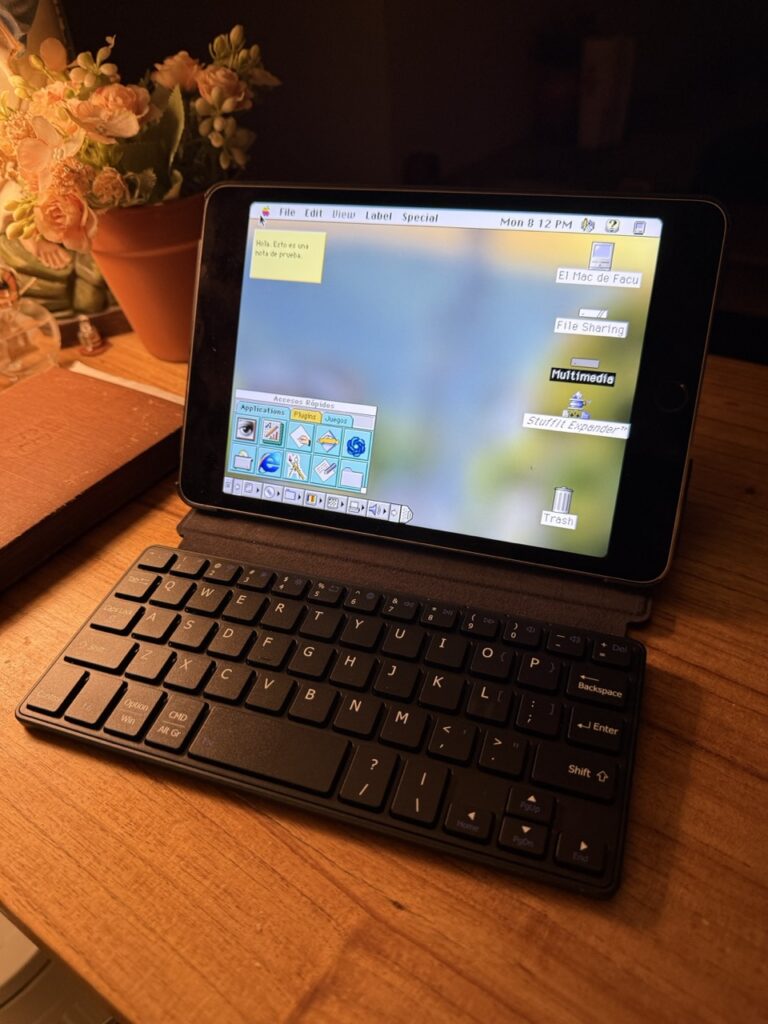
Suddenly, I found the perfect system for me. In this article, I’ll tell you how it works, what I use it for, and why it turned out to be the ideal setup — at least for my kind of creative life.
But first things first.
How do you install it?
Step-by-step installation Guide
1. Install AltStore on your iPad
AltStore allows you to sideload apps (.ipa files) without needing to compile them yourself in Xcode.
2. Download the Basilisk II .ipa
Get it from here: https://github.com/zydeco/macemu/releases/tag/ios-v1.0.1
3. Install Basilisk II via AltStore
Open AltStore and load the downloaded .ipa file to install Basilisk II on your device.
4. Download a ROM
You can get one here: https://www.redundantrobot.com/sheepshaver
I personally use the Quadra 900 ROM.
5. Download and install your favorite version of System 7
You can find different versions here: https://www.macintoshrepository.org/1185-mac-os-7-0-7-0-1
Why AltStore?
Because it allows me to install a precompiled .ipa without having to build it myself using Xcode. The downside? Once a week, you need to “refresh” the certificate so the app keeps running.
Alternatively, you can compile your own Basilisk II package. Here is a good tutorial by Matt Sephton.
Why the iPad Mini 4 Is the Perfect System (For Me)
I wasn’t looking for the “most powerful” setup. I was looking for the right one. And for my particular way of working, the iPad Mini 4 turned out to be strangely perfect.
1. The Screen Resolution
The iPad Mini 4 has a resolution of 2048×1536 pixels — which is exactly 4× the classic Macintosh resolution of 512×384. That means System 7 scales beautifully. When I run it at 512×384 inside Basilisk II, everything looks sharp. Clean. Balanced. The interface feels natural on the screen, almost as if it was meant to live there.

2. Battery Life = Portability
Old Macs are beautiful. But they are not portable in 2026 terms. The iPad Mini 4 gives me hours and hours of battery life. I can open it anywhere — a café, a park, an airport — and I instantly have my classic Mac environment ready. Just tap the screen, System 7 appears. That kind of portability changes the relationship you have with a machine. It becomes a notebook, not a museum piece.
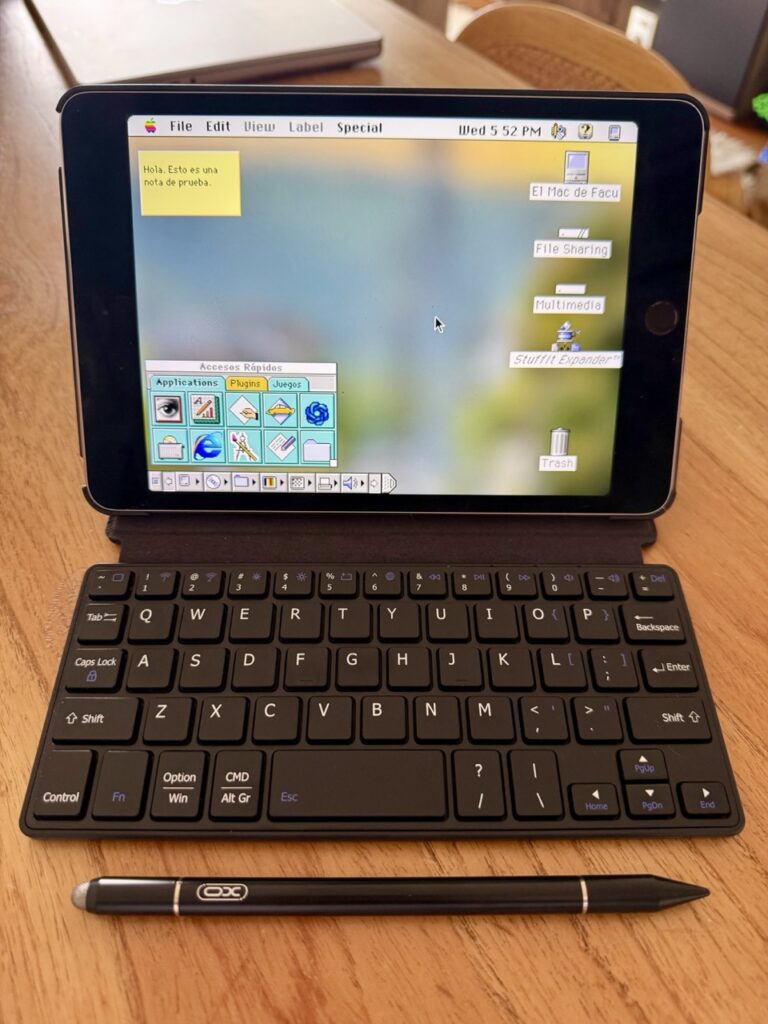
3. Pencil + Bluetooth Keyboard
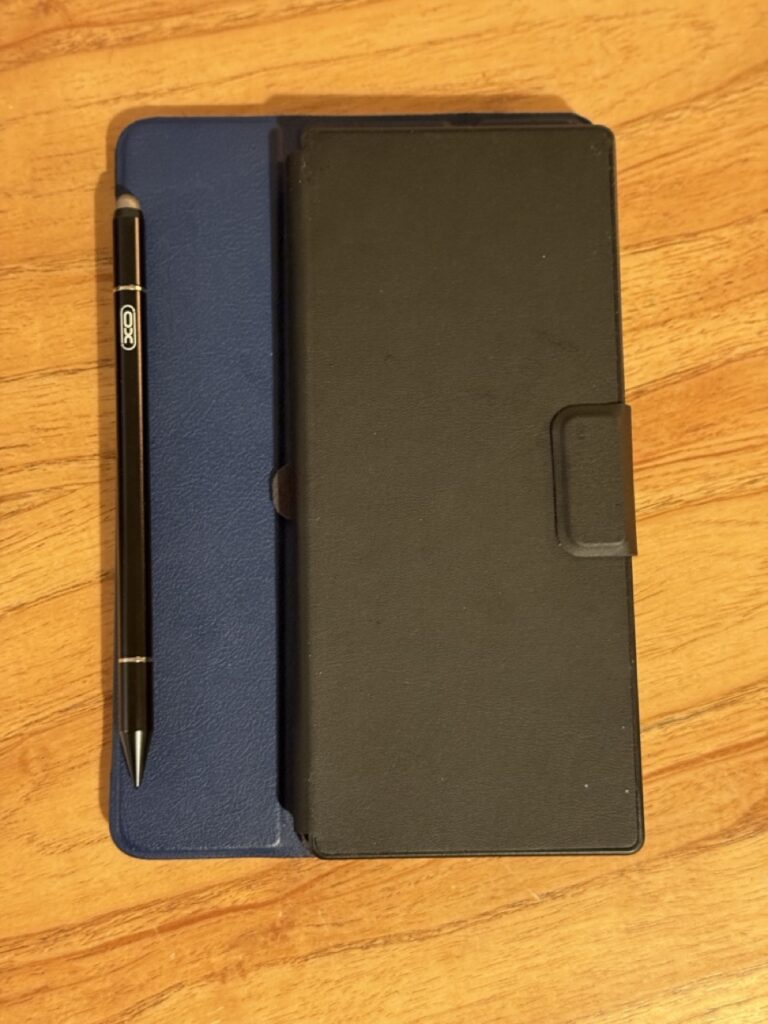
Using a generic pencil as a pointer is surprisingly natural. It feels more precise than a finger, more intimate than a mouse. Almost like using a stylus on an old Newton — but with a Mac interface. And when I pair it with a Bluetooth keyboard, the experience becomes complete.
4. The Hidden Superpower: iOS Interoperability
This is the part that changed everything for me. Classic Macs were isolated machines. That was part of their charm — and their limitation. But running System 7 inside iOS means I get the best of both worlds.
I can:
• Share files in and out of the emulator with ease
• Use iOS cloud storage
• Share internet connection seamlessly
• Move documents between modern apps and System 7 without friction
What Do I Use It For?
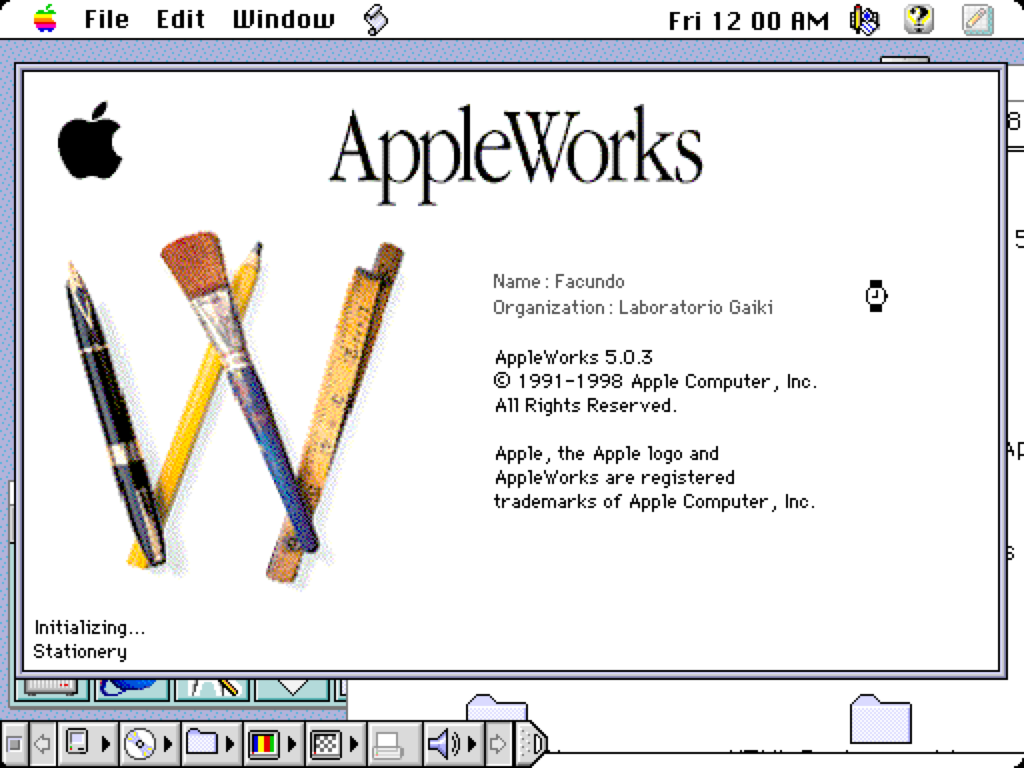
• Writing in AppleWorks
• IRC with Wallops
• Journaling with EZ Note
• Vibe coding in HyperCard
• ChatGPT via LegacyAI
• Usenet archaeology with MT-NewsWatcher
• Browsing the old web / indie web with iCab, Internet Explorer 4, and Protoweb
• Classic gaming in my spare time
And then… things got interesting.
With a bit of help from ChatGPT and Gemini, I was able to build:
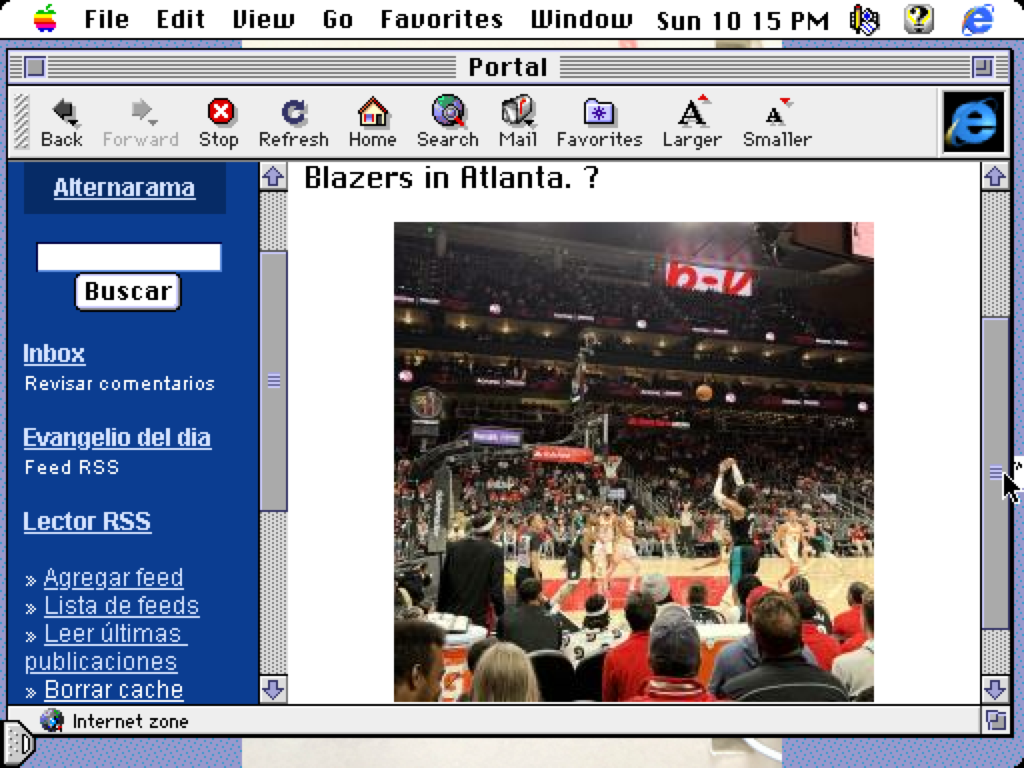
1. HTML 3 RSS reader that runs on my webserver and works perfectly inside Internet Explorer 4 — allowing me to read my feeds from a 1990s browser without breaking layout or compatibility. It even supports images!

2. Terminal-style publishing tool that lets me post directly to my WordPress blog from inside System 7.
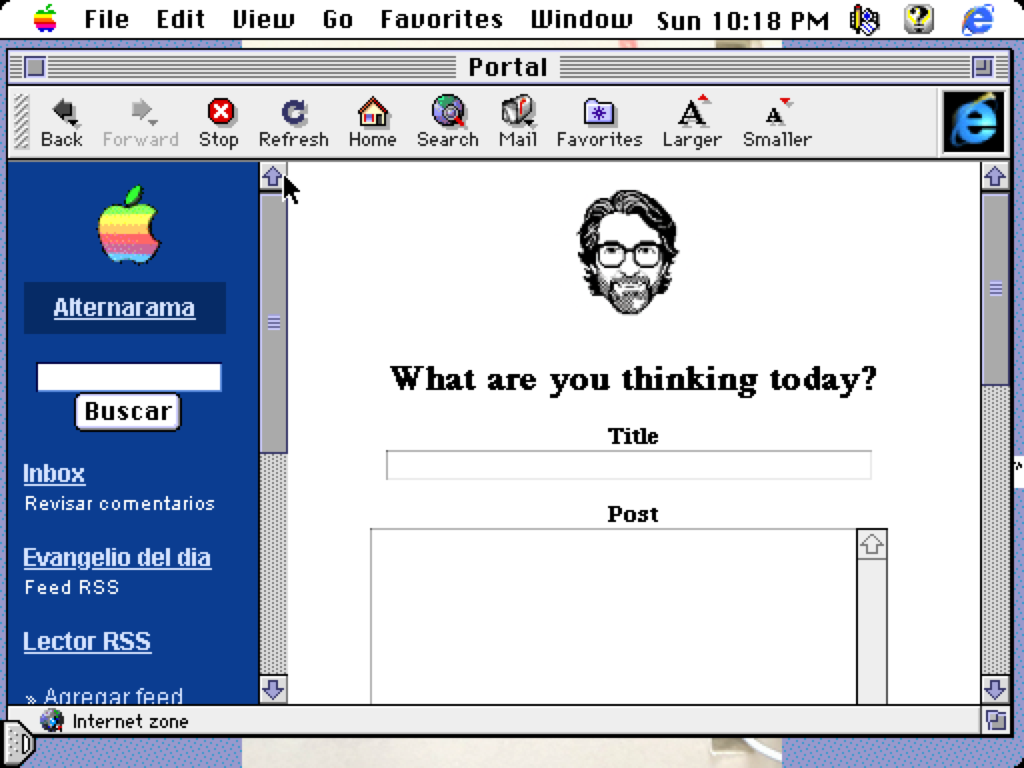

3. A homepage where I can see the latest posts from my feeds, search the web through FrogFind, and even watch a live webcam from Kyoto!

All of this was developed entirely in ChatGPT using a few simple prompts. It runs on my own web server thanks to PHP.
How? When?
At the end of the day, I shut down my work MacBook. I leave my phone charging in another room. And I open System 7. No Slack. No analytics. No dashboards. No feeds optimized to capture my attention.
Sometimes I write. Sometimes I read. Sometimes I tinker with a HyperCard stack. And sometimes… I just play a round of Shanghai 🙂
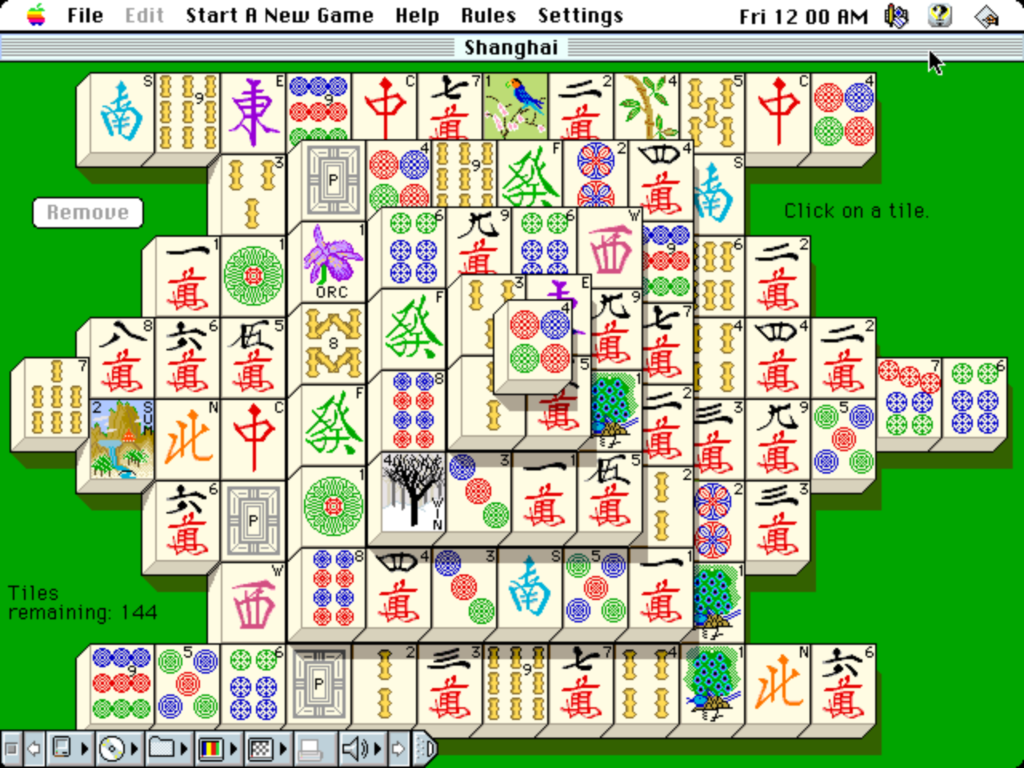
This setup is my “digital space,” for everyday life. In a world of infinite scroll I voluntarily chose a system with some “limits”.
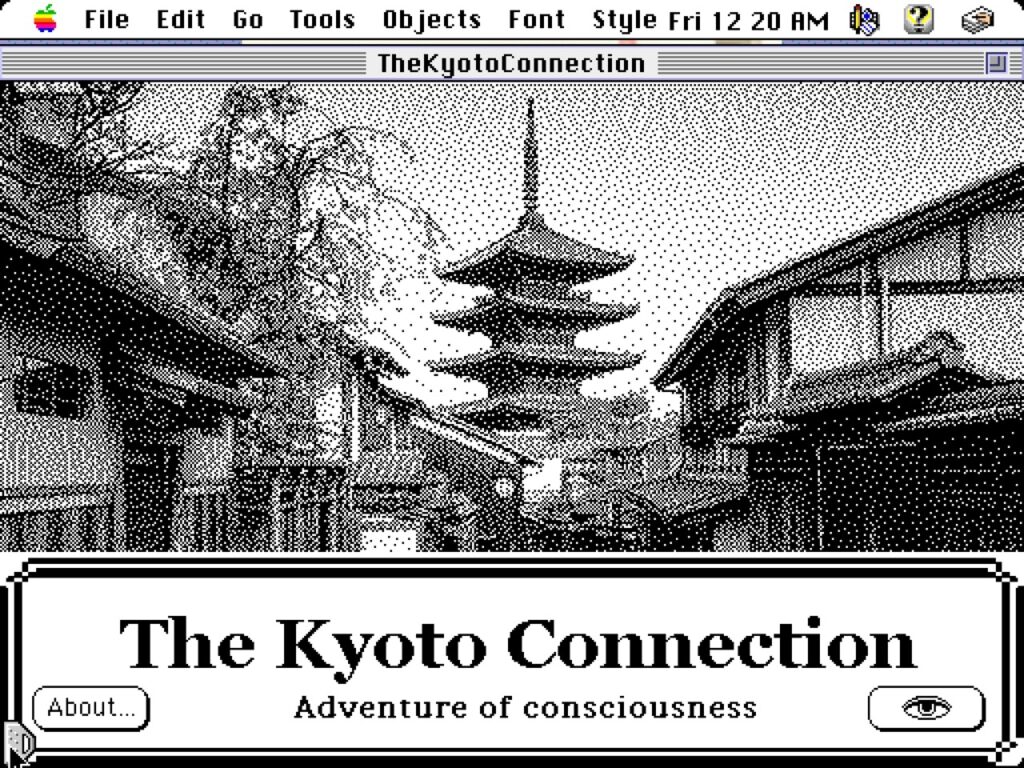
All of this isn’t a matter of nostalgia for me, but rather a way of designing a healthy relationship with technology — in an environment that inspires me and helps me focus on what I want to do.
Happy Marchintosh, everybody.
6 Comments
I’ve been wanting to relive the 68k classics and was looking for an old SE or even an LC, but you’ve inspired me to pick up an iPad Mini and give this a try! Hoping to build a little “dock” for it to give it that classic feel. Amazing.
Thank you for your comment William! A dock would definitely fit your setup very well. Enjoy!
Thank you for the inspiration! This got me to reinstall MacOS 9 on iPad Pro using PocketShaver.
A few days in, I’m now running a vibe-coded custom proxy that slims down the modern web enought so it can be used on ancient browsers 🙂
Glad you liked it! PocketShaver is on my list…
Great article. I’m trying to emulate your emulation. I got BasiliskII installed and all the necessary files but it crashes on boot up. How do you configure the actually files? Where should they go?
Thanks!
Hi Frank! Thank you for your reply. You must place all the files in the Basilisk folder on your iPad. Hope it works!!